 SoundLuma
How to Choose Background Music for a Video
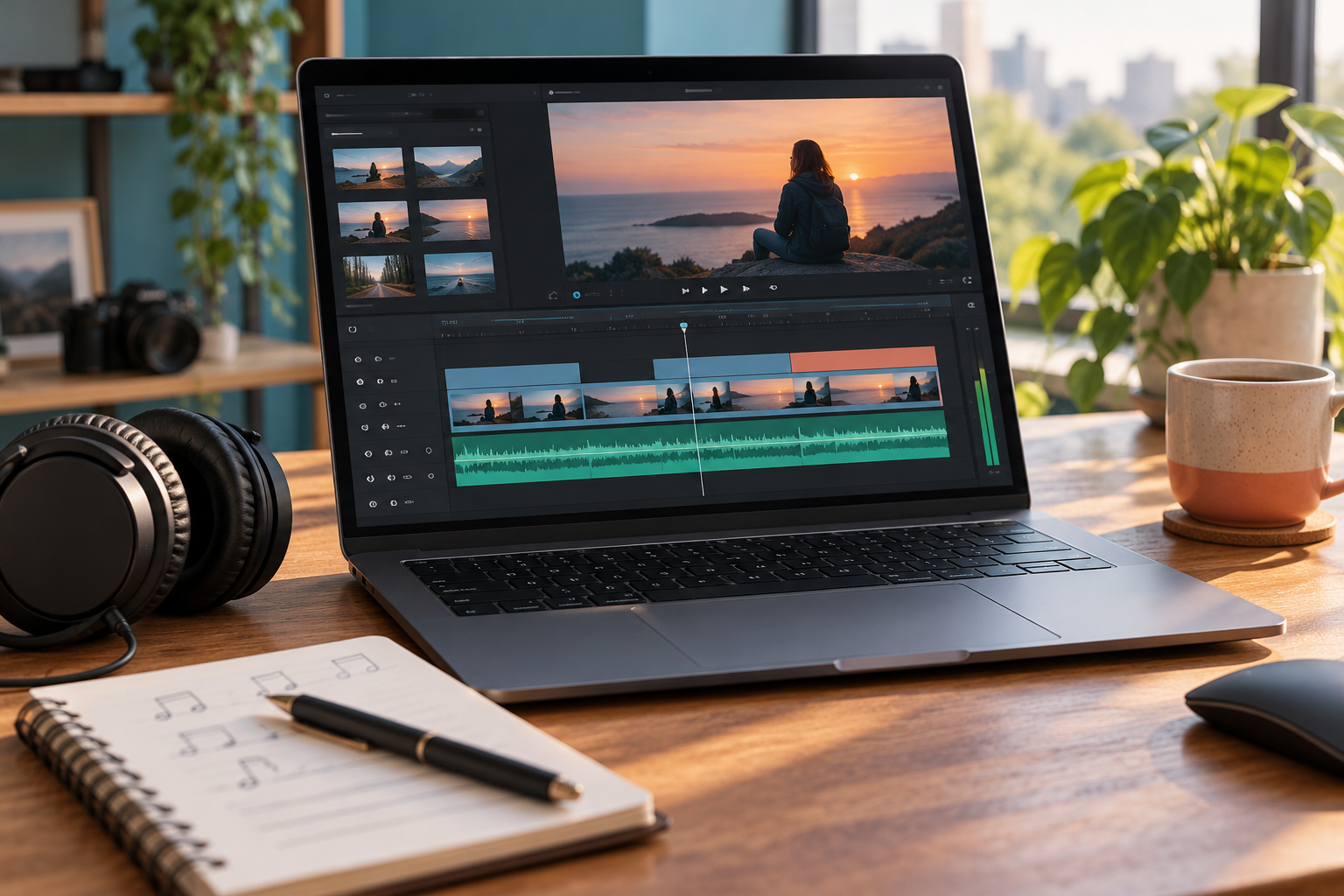
Background music for a video should support the scene, not compete with it. Start with the emotional role the music needs to fill, then match genre, tempo, and energy to the visuals and the voiceover. A good choice disappears into the edit; a bad one calls attention to itself.
Start with the purpose of the scene
Before searching for music, write down what the scene needs:
- A travel montage may need a steady, uplifting pulse that does not distract from the visuals.
- A product demo may need a clean, neutral bed that leaves room for a voiceover.
- A personal story may need a slow, reflective piano that matches the emotional tone.
- An action sequence may need a faster tempo and a stronger beat.
The purpose controls every other decision. "Find a good song" is too vague; "find a 90-second calm acoustic track with room for narration" gives you something to search for.
Match the energy to the edit
The music's energy curve should follow the edit. If the video starts slow and builds, the music should do the same. If the video is a steady walkthrough, a track with a consistent energy level works better than one with a dramatic drop or swell.
| Video type | Energy curve | Example |
|---|---|---|
| Travel montage | Gradual build | Quiet opening, fuller middle, soft close |
| Product demo | Steady, neutral | Even energy throughout; no sudden shifts |
| Interview or narration | Flat and low | Background only; dips when someone speaks |
| Action or highlight reel | High and driving | Strong beat from the start; peaks at key moments |
Choose a tempo that fits the pacing
Tempo affects how fast the video feels. A track at 60-80 BPM feels slow and deliberate. A track at 120-140 BPM feels energetic. Match the tempo to the cut rhythm: if you cut to the beat, the music and visuals stay in sync.
If the video has voiceover, a slower tempo usually works better. Fast music under speech creates competition for the listener's attention.
Keep the arrangement sparse under speech
Music with a busy melody or prominent vocals fights a voiceover. When someone is speaking, choose:
- Instrumental tracks without vocals
- Sparse arrangements with long sustained notes
- Ambient pads rather than melodic leads
- Tracks with a simple repeating motif
If the music has a strong melody, lower its volume during speech and raise it during silent sections. This is called ducking, and most video editors support it.
Where to find background music
Three common sources, each with trade-offs:
- Royalty-free libraries (Artlist, Epidemic Sound, PremiumBeat): licensed for a subscription fee; quality is consistent; search by mood, tempo, and genre.
- AI-generated music: describe the mood and instruments in a prompt, generate a track, and use it directly. Useful when you need a specific mood that is hard to find in a library. SoundLuma supports instrumental generation for this use case.
- Creative Commons sources (Free Music Archive, YouTube Audio Library): free, but licensing terms vary. Read the license before using a track in a published video.
Listen in context, not in isolation
A track that sounds good on its own may not work under the video. Always preview the music with the video playing. Check three things:
- Does the music overpower the voiceover at any point?
- Does the energy match the scene at the 15-second, 30-second, and final marks?
- Are there sudden drops or swells that clash with a cut?
Adjust the volume or try a different track if any of these fail.
Keep a record of the track
Save the track name, license, and intended use in your project notes. If the video is published online, some platforms ask for proof of music licensing. Having the information ready saves time later.
Practical checklist
Before exporting the final video:
- [ ] Music volume is at least 6 dB below the voiceover level during speech.
- [ ] No vocals are competing with narration.
- [ ] The energy curve follows the edit.
- [ ] The track is licensed for your intended use.
- [ ] The track title and license are saved in your project notes.
For instrumental music generation you can tailor to a specific scene, see the instrumental song guide. For writing prompts that describe mood and genre, use the AI song prompt guide.